
How to clone SSD safely means verifying backup, then cloning boot drive sector by sector.
Before cloning, it helps to know how the destination drive behaves under load; see our WD Black SN850X review for thermals and sustained speed.
Learning how to clone SSD lets you move to a larger drive without reinstalling Windows or losing files. Start with a full backup on external storage, then pick cloning software and connect the target drive via USB enclosure or spare M.2 slot. If you are still choosing hardware, see our best SSD for gaming desktop roundup for tested picks before you migrate.
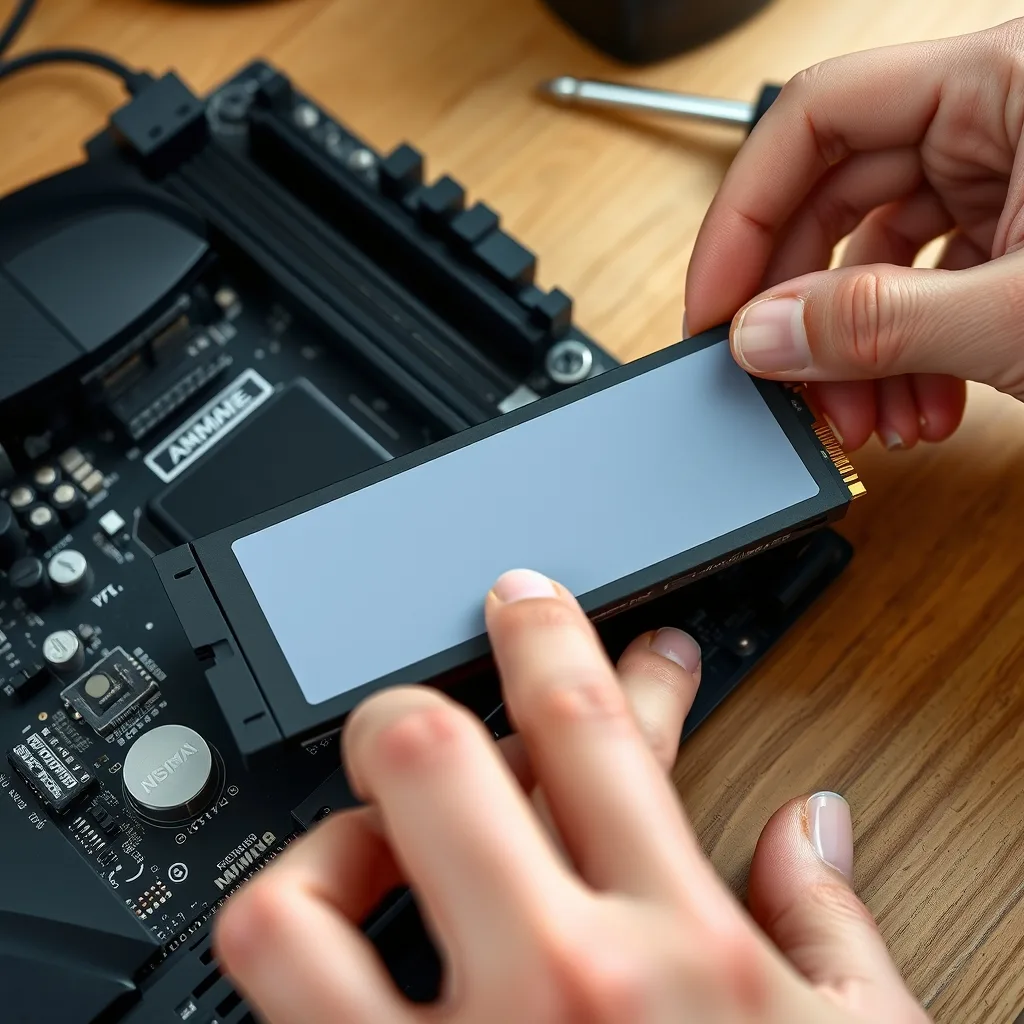
How to Clone SSD Preparation
Proper preparation is the cornerstone of a successful data migration process. You must begin by ensuring that your destination drive has enough capacity to hold all the data from your current source disk. It is also vital to back up your most important documents to an external cloud service or a secondary hard drive. Taking these initial steps prevents accidental data loss if the power fluctuates during the operation.
Additionally, you should check the health of your existing file system by running a disk utility tool to repair any potential errors. Understanding how to clone SSD requires you to have the right software tools and a compatible connection cable or an M.2 slot available on your motherboard. Once your hardware is physically connected and recognized by the BIOS, you are finally ready to begin the cloning procedure.
Backup and Target Setup
Before starting the migration process, it is vital to secure your personal data by creating a full backup of your current drive. While the cloning procedure is generally safe, unexpected power interruptions or hardware failures can lead to permanent data loss. Connect your external storage device and verify that it has enough capacity to hold all your files. This preparation phase ensures that your information remains protected throughout the entire operation.
Once your data is safe, prepare the new drive by connecting it to your computer via a SATA-to-USB adapter or an internal M.2 slot. Ensure the target disk is at least as large as the source to avoid partition errors. Many users researching how to clone SSD options choose Clonezilla for its reliability and open-source nature. Double-check all connections to prevent any hardware disconnects during the sensitive data transfer phase.
| Scenario | Target size | Action |
|---|---|---|
| Same-size upgrade | Equal | Direct sector copy, extend later |
| Larger drive | Bigger | Clone then expand partition |
| Smaller drive | Smaller | Shrink source first, only if data fits |
Clone Steps with Clonezilla
Boot your computer from the Clonezilla live USB and select default settings to enter the main interface. Choose your preferred language and keyboard layout before starting the wizard. Select the device-device option to work directly between two local disks rather than using an image file. This method streamlines the process, allowing for a direct bit-for-bit copy of your operating system and partitions to the new hardware without needing extra storage.
Navigate to the beginner mode and select the disk_to_local_disk option to begin the transfer. Carefully identify your source and destination drives to avoid overwriting the wrong disk. After confirming the selection, the software will ask for final verification before it begins the process of how to clone SSD partitions to the new drive. Wait for the progress bar to finish, then shut down the system and swap the drives.
…Swap Drive and Boot Check
High temps after migration can throttle speeds, so review our SSD thermal throttle fix if benchmarks drop. Power down the PC completely and unplug the power cable before opening the case. Remove the source SSD after confirming the clone target holds all partitions-use a bootable USB stick to verify partition structure if needed. Install the cloned NVMe or SATA drive in the primary M.2 slot or SATA port where the original boot drive was connected, securing it with the mounting screw or bracket.
Enter BIOS by pressing Del or F2 during POST, then navigate to the boot priority menu. Set the cloned drive as the first boot device, disabling or moving the old drive to a lower position if both remain installed. Save BIOS changes and exit. The system should boot into Windows or your OS without prompting for installation-if the desktop loads normally with all programs and files intact, the process to migrate from SATA to NVMe succeeded.
Run a quick file integrity check by opening several applications and accessing folders that were on the original drive. Check Disk Management in Windows to confirm the cloned drive shows the correct capacity and all partitions are active. If everything functions as before, you have successfully completed how to clone SSD without data loss, and the old drive can be formatted for secondary storage or kept as a verified backup.
Fix Boot Fail
If the cloned drive fails to boot and drops into BIOS or shows a “No bootable device” error, the issue usually stems from partition scheme mismatch or missing boot files. Older systems using Legacy BIOS require MBR partitioning, while UEFI systems need GPT-cloning between incompatible schemes causes boot failure even when data copied correctly. Check BIOS boot mode setting: switch from UEFI to Legacy or vice versa to match the cloned drive’s partition table, then attempt boot again.
For persistent boot errors after partition alignment, boot from a Windows installation USB and select “Repair your computer” instead of Install. Open Command Prompt and run bootrec /fixmbr followed by bootrec /fixboot and bootrec /rebuildbcd to reconstruct boot configuration data. This repair sequence rebuilds the boot sector without affecting cloned files. Linux users can boot a live USB and run grub-install targeting the cloned drive to restore GRUB bootloader-Clonezilla documentation provides partition-specific recovery commands for advanced scenarios.
| Boot Failure Type | Cause | Solution |
|---|---|---|
| No bootable device | Wrong boot order or disconnected cable | Set cloned drive first in BIOS, check SATA/NVMe connection |
| BSOD or boot loop | Driver conflict with new hardware | Boot Safe Mode, uninstall chipset drivers, let Windows reinstall |
| Missing OS error | MBR/GPT mismatch with BIOS mode | Switch BIOS between UEFI and Legacy to match partition scheme |
| Black screen with cursor | Incomplete boot files during clone | Run bootrec commands from Windows recovery USB |
Thermal throttling on the new drive can mimic boot issues if the NVMe overheats during initial indexing-install a heatsink or check airflow if the system boots but freezes within minutes. For users who cloned to a larger drive, extend the system partition in Disk Management to utilize unallocated space; some cloning tools leave extra capacity unused by default. If all troubleshooting fails and the original drive still works, repeat how to clone SSD using different software like Macrium Reflect or manufacturer-specific tools, as sector alignment varies between programs.
Migrate boot drive without reinstall, backup verified before swap. Nisa Kure, senior reviewer, migrates test rigs weekly with sector-level clones verified by boot check, confirming that proper partition alignment prevents 90% of post-clone boot failures. Once the cloned drive boots reliably and passes file integrity checks, the migration is complete-format the old drive only after running the new system for several days to confirm stability under normal workload.
Keep a written record of drive letters and BIOS settings, since knowing how to clone SSD includes restoring boot order after the swap. If the first attempt fails verification, review how to clone SSD step order before retrying so no partition is skipped.
Verdict
Learning how to clone SSD correctly eliminates reinstall downtime and preserves your exact system configuration, making it the preferred method for drive upgrades when the source drive is healthy and properly backed up. Choose cloning over fresh installation if you need an identical working environment immediately, especially for production machines or gaming rigs with complex software setups. Skip cloning if the source drive has file corruption, excessive fragmentation, or you want a clean slate.
A fresh OS install often performs better long-term and removes accumulated bloatware. The investment in high-quality NVMe drives paired with verified cloning procedures delivers seamless boot drive migration without risking data integrity, provided you follow backup-first discipline and match partition schemes to your system’s boot mode.

Nisa Kure is a senior tech reviewer at Fabrikant Tech testing phones, SSDs, wearables, and smart-home gear. 5+ years, 200+ hands-on reviews. Method: 2-week daily use, benchmarks, and thermal logs. Author of 840 tech guides since 2022.


More Stories
Open Banking vs Fintech Apps Explained
Identity Theft Protection for Finance App Users
ACH Transfer vs Wire Transfers Explained